Slide workflow
The best AI LinkedIn carousel workflow starts with real content, not a blank canvas.
If the article, PDF, or document already exists, the fastest path to a LinkedIn carousel is turning that structure into slides you can export as PDF, PowerPoint, or PNG.
Why carousel creation works better from existing content
Most LinkedIn carousels are just structured ideas presented slide by slide: a hook, a few supporting points, proof, and a close. That means the strongest source material is often something you already wrote, such as an article, an explainer page, a PDF, or internal notes.
Instead of rebuilding the same argument manually in a design tool, an AI carousel workflow can start from the content itself, preserve the logic, and turn it into slides that are already organized around the story.
Why the export format matters
A carousel is not just one design artifact. You usually need different outputs for different jobs: a PDF for LinkedIn upload, a PowerPoint for editing or client review, and PNG slides for reuse in posts, ads, or other channels.
That is where most AI carousel tools fall short. They may help generate ideas, but they do not always produce download-ready formats you can actually use across the workflow.
- PDF is useful for LinkedIn carousel publishing
- PowerPoint is useful when the slides still need editing or review
- PNG slides are useful for repurposing individual frames across channels
How Article Video Studio fits the workflow
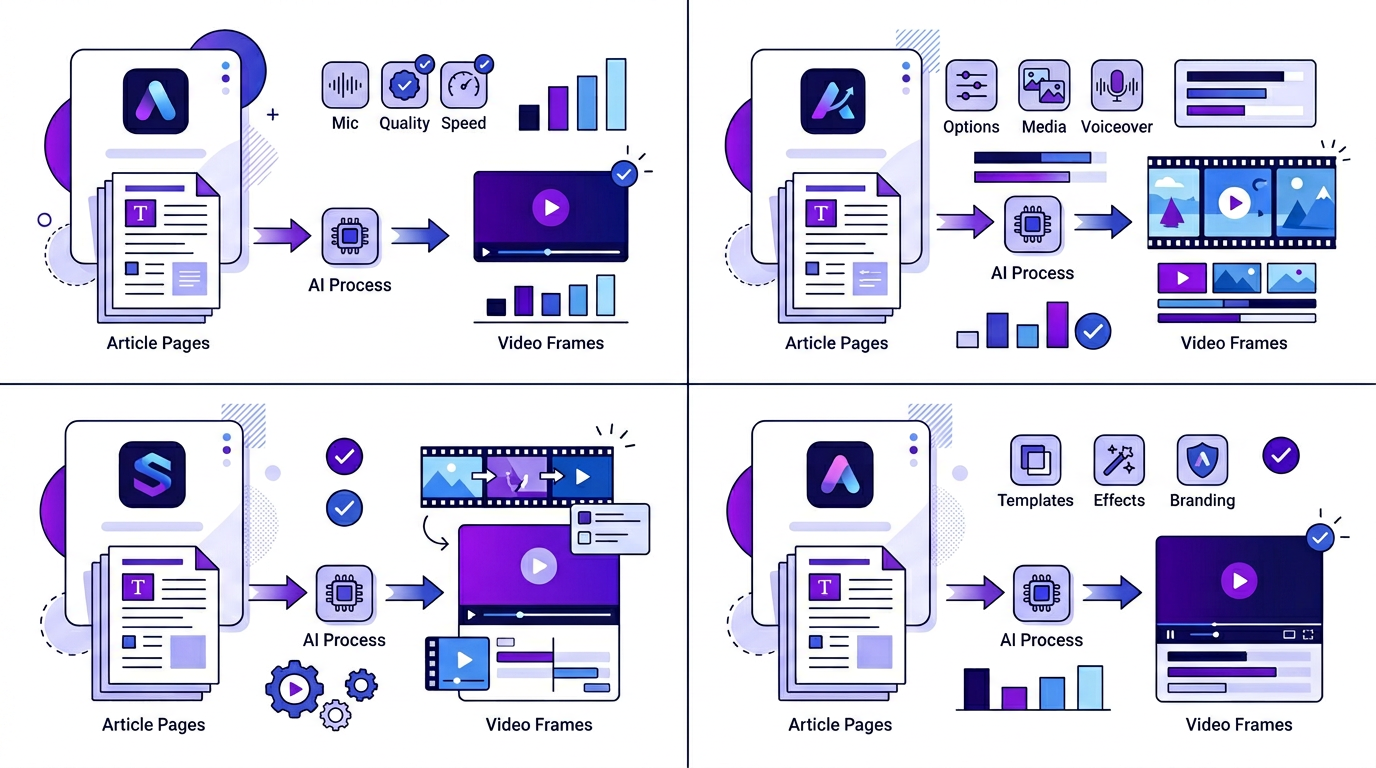
Article Video Studio already turns written content into structured scenes. That same scene structure can now be exported as slides, which makes it useful for carousel production as well as video.
You can generate the scenes from the source content, choose the best frame for each slide, then download the result as PowerPoint, PDF, or one PNG per scene. That gives one source asset multiple distribution formats instead of forcing a separate design pass for each one.
What this is best for
This workflow is strongest for founder posts, B2B explainers, educational threads, research summaries, product lessons, and any content that already has a clear progression from problem to takeaway.
If the content already teaches something valuable, the carousel becomes a packaging layer rather than a separate content ideation job.
- Turn an article into a LinkedIn-ready PDF carousel
- Give the same scenes to a teammate as a PowerPoint deck
- Export PNGs for lightweight social reuse
A better AI carousel workflow
1. Start with a URL, article, PDF, or document you already trust.
2. Let Article Video Studio structure that content into scenes automatically.
3. Pick the best frame for each scene, then download the slides as PowerPoint, PDF, or PNG depending on where they need to go next.
Frequently Asked Questions
Can I use Article Video Studio for LinkedIn carousel creation?
Yes. Once your content is structured into scenes, you can export those slides as a PDF for carousel posting, as a PowerPoint deck for editing, or as PNG files for per-slide reuse.
Why is PDF export important for LinkedIn carousels?
Because LinkedIn carousel workflows commonly rely on PDF uploads. If your AI workflow can generate structured slides and export them as PDF, the jump from source content to publishable carousel becomes much shorter.
What is the role of PowerPoint and PNG export here?
PowerPoint is useful for review, client edits, or team collaboration. PNG export is useful when you want each slide as a separate image for social reuse, asset libraries, or design handoff.
What source content works best for AI carousel generation?
Articles, explainers, PDFs, research summaries, documentation, and strong internal notes all work well because they already contain the sequence of ideas a carousel needs.