How-to
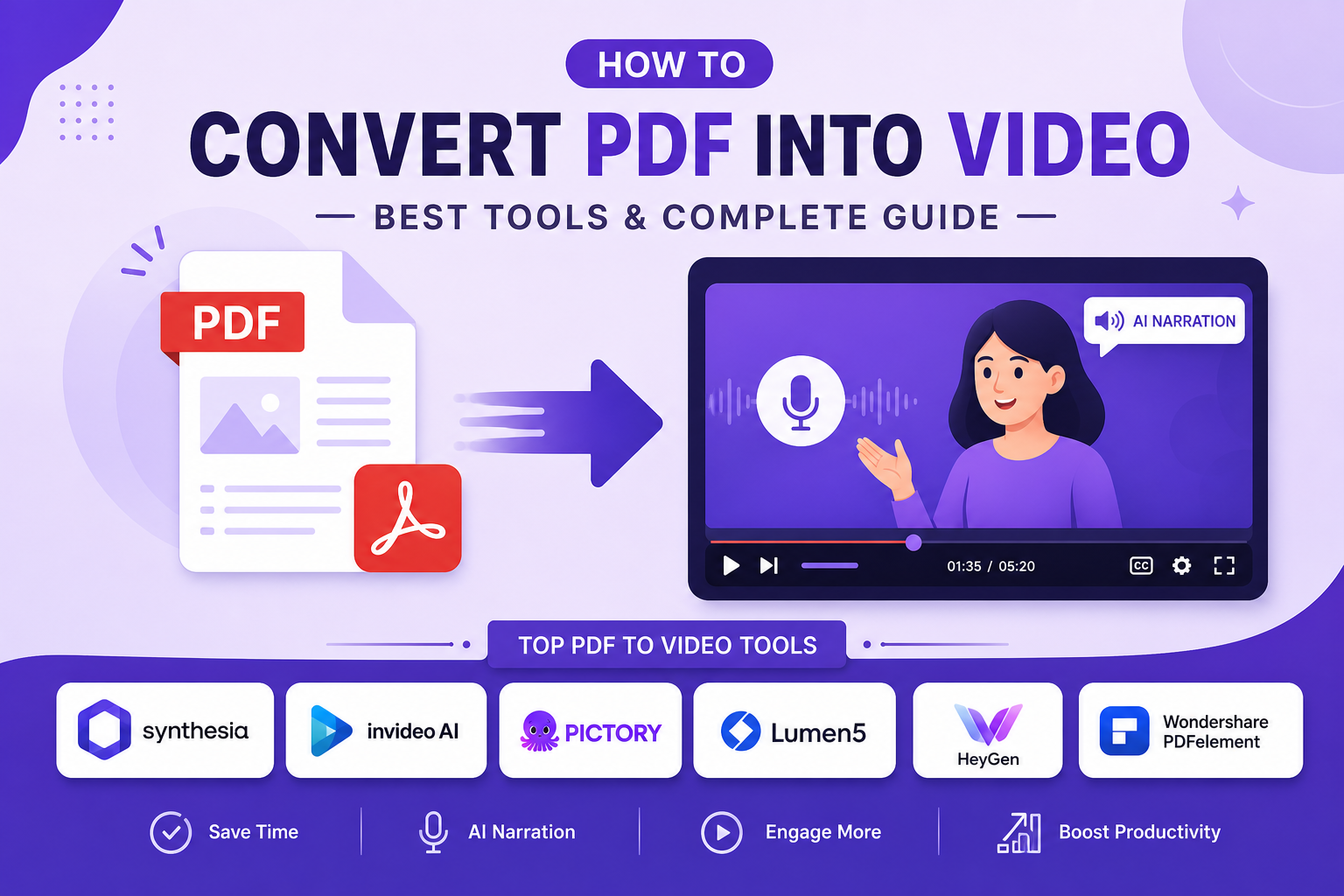
How to Convert a PDF Into a Video: 5 Best AI Tools in 2026
Learn how to convert a PDF into a video using the 5 best AI tools in 2026 — Article Video Studio, Synthesia, X-Pilot, Visla, and Mootion. Step-by-step guide included.
Overview
TL;DR: A step-by-step guide to converting a PDF into a video using the five best AI tools in 2026 — Article Video Studio, Synthesia, X-Pilot, Visla, and Mootion.
The fastest way to make your PDF actually reach people is to convert it into a video. A PDF gets downloaded and forgotten. A video gets watched, shared, embedded in blog posts, and distributed on YouTube, LinkedIn, and Instagram.
The good news: AI tools in 2026 make this conversion automatic. You upload the PDF, and the tool extracts the content, builds a narrated video, and handles the visual layout. No filming, no design work, no editing software.
Here are the five best tools for converting PDFs into videos, with a full comparison and step-by-step instructions.
Why Convert a PDF to Video?
PDFs are excellent for sharing dense information with a small audience that is specifically looking for it. But for everyone else:
1. PDFs don't reach new audiences. You can't embed a PDF on YouTube or boost it on LinkedIn the same way you can a video.
2. PDFs don't explain themselves. A narrated video walks the viewer through the content at your intended pace.
3. PDFs aren't mobile-friendly. Pinching and zooming on a 20-page report is a poor experience. A two-minute video covering the same content is far more watchable on a phone.
4. Video improves information retention. Studies consistently show that viewers retain more from video than from reading — especially for complex or data-heavy content.
If you've already put the work into writing the PDF, converting it to video is simply smart content distribution.
1. Article Video Studio — Best for Polished, Branded Video From PDFs
Best for: Marketers, educators, and creators who want high-quality visual output
Article Video Studio is purpose-built for turning written content — including PDFs — into professional broadcast and explainer videos. Upload the PDF, select a visual template, and the AI generates a narrated, scene-structured video in 2–3 minutes.
What makes it stand out from other PDF-to-video tools:
The template library is substantially higher quality than competitors. Instead of generic slideshows, Article Video Studio produces:
1. Newscast — broadcast-style video with lower thirds, anchor narration, and data graphics that look like TV visuals
2. Nightfall — cinematic dark glass panels with neon-glow metrics; premium keynote aesthetic
3. Gridcraft — editorial bento-grid layouts; clean, modern, great for business content
4. Spotlight — bold kinetic typography that slams into frame; fast-paced and social-first
5. Geometric Explainer — clean whiteboard style for technical or educational content
Article Video Studio also exports in four formats from the same PDF: MP4 video, PowerPoint (.pptx), PDF slides, and PNG images per scene. You can share the video on YouTube, use the PDF as a LinkedIn carousel, send the PowerPoint to clients for review, and use the PNGs for social posts — all from one upload.
Pricing: $4 per video; bulk rates at 10+ and 30+ exports Try it: articlevideostudio.com
2. Synthesia — Best for Corporate-Grade AI Avatar Videos
Best for: Enterprise training, compliance, and sales enablement
Synthesia is the professional benchmark for AI avatar video generation. It extracts key points from your PDF, generates a script, and produces a video with one of 230+ AI presenters delivering the narration with lip-synced delivery in 140+ languages.
The result looks exactly like a real human is presenting your document on camera. For internal training videos, compliance modules, and customer onboarding — where production values signal credibility — Synthesia is the right tool.
Limitation: It's expensive relative to most PDF-to-video tools. The professional quality comes at a professional price point.
Best for: Corporate training, compliance, and sales content where human-presenter-style video matters Pricing: Paid plans starting at ~$22/month
3. X-Pilot — Best Free PDF to Video Option
Best for: Anyone who needs PDF-to-video conversion with no budget
X-Pilot uses AI to extract document structure and generate narrated, animated videos — not static slideshows. The free tier is genuinely useful:
1. Up to 30 pages per document
2. 1080p MP4 export
3. No watermark
4. No credit card required
The visual output is more generic than Article Video Studio or Synthesia, but for the price (free), it's hard to argue with. Best for simple instructional content, research summaries, and educational PDFs where visual polish matters less than getting the content into video format.
Free tier: Yes — no watermark, no credit card, 1080p export Best for: Free PDF-to-video conversion with reasonable quality
4. Visla — Best for Short-Form and Social Video
Best for: Marketers turning PDFs into social media videos
Visla automatically extracts key content from the PDF, breaks it into scenes, and generates video that feels more like a reel or explainer than a presentation. It adds stock footage, narration, and scene transitions.
If the goal is a LinkedIn video, Instagram Reel, or YouTube Short rather than a full explainer, Visla's social-first approach produces better results than tools oriented toward long-form presentation content.
Best for: Short-form video for social media from PDF source content Free tier: Limited free tier
5. Mootion — Best for Speed
Best for: Anyone who needs a video generated as fast as possible
Mootion outperformed competitors by 65% in speed in independent tests — generating a full 3-minute video in under 2 minutes compared to the industry average of 6 minutes. If turnaround speed is your primary constraint, Mootion is worth testing.
The output quality is solid for presentation-style videos. For premium visual output at high speed, it's a reasonable middle ground.
Best for: High-volume use cases where speed is the primary priority Free tier: Limited
How to Convert a PDF Into a Video With Article Video Studio (Step by Step)
- Go to articlevideostudio.com and sign in (or create a free account)
- Click New Project → select Upload PDF or Paste Link if the document is hosted online
- Upload your PDF — the AI reads and extracts the content automatically
- Select a template: - Newscast — broadcast-style with TV graphics - Gridcraft — editorial and modern - Nightfall — cinematic and premium - Spotlight — bold and social-first - Geometric Explainer — clean and educational
- Choose a voiceover from the library (multiple English accents plus other languages)
- Click Generate — wait 2–5 minutes for the AI to build your video
- Review the scenes in the editor; adjust any scene text, images, or layout if needed
- Export: - MP4 — upload to YouTube, LinkedIn, or embed on your site - PowerPoint — share with teammates or clients for editing - PDF — upload to LinkedIn as a carousel - PNG — use individual slides for social posts
Comparison: PDF to Video Converters in 2026
- Article Video Studio — Free: Trial · Templates: ✓✓ High quality · Export Formats: MP4 + PPT + PDF + PNG · Avatar: — · Best For: Polished branded video
- Synthesia — Free: No · Templates: ✓ · Export Formats: MP4 · Avatar: ✓✓ AI avatars · Best For: Enterprise/corporate
- X-Pilot — Free: ✓✓ · Templates: Basic · Export Formats: MP4 · Avatar: — · Best For: Free tier, no watermark
- Visla — Free: Limited · Templates: ✓ · Export Formats: MP4 · Avatar: — · Best For: Social/short-form video
- Mootion — Free: Limited · Templates: ✓ · Export Formats: MP4 · Avatar: — · Best For: Speed-first generation
Frequently Asked Questions
How long does it take to convert a PDF to video?
Article Video Studio converts most PDFs in 2–5 minutes. Mootion is faster. Synthesia takes longer due to avatar rendering.
Do I need to edit the video after conversion?
Usually not. Article Video Studio gives you a review screen where you can adjust scenes, but most outputs are usable without additional editing.
What's the best free way to convert a PDF to video?
X-Pilot offers the strongest free tier — 1080p MP4, no watermark, no credit card required, up to 30 pages.
Can I add my own voiceover to the PDF video?
Article Video Studio uses AI voiceovers from its library. Some tools (like Synthesia) let you clone your voice. Manually adding a voiceover is also possible via video editing after export.
Which PDF format works best?
Text-based PDFs (with selectable text) work best. Scanned image PDFs produce lower quality results because the AI cannot extract the text reliably.
Can I upload a presentation or slide deck PDF?
Yes. Presentation PDFs — where each page is a slide — work particularly well because the page structure already maps closely to video scenes.