How-to
How to Make a PDF Into a Video: 5 AI Tools That Actually Work in 2026
Learn how to make a PDF into a video using 5 AI tools tested in 2026 — Synthesia, Visla, X-Pilot, Vidnoz, and Article Video Studio. Step-by-step instructions included.
Overview
TL;DR: How to make a PDF into a video using five AI tools tested in 2026 — Synthesia, Visla, X-Pilot, Vidnoz, and Article Video Studio — with step-by-step instructions for each.
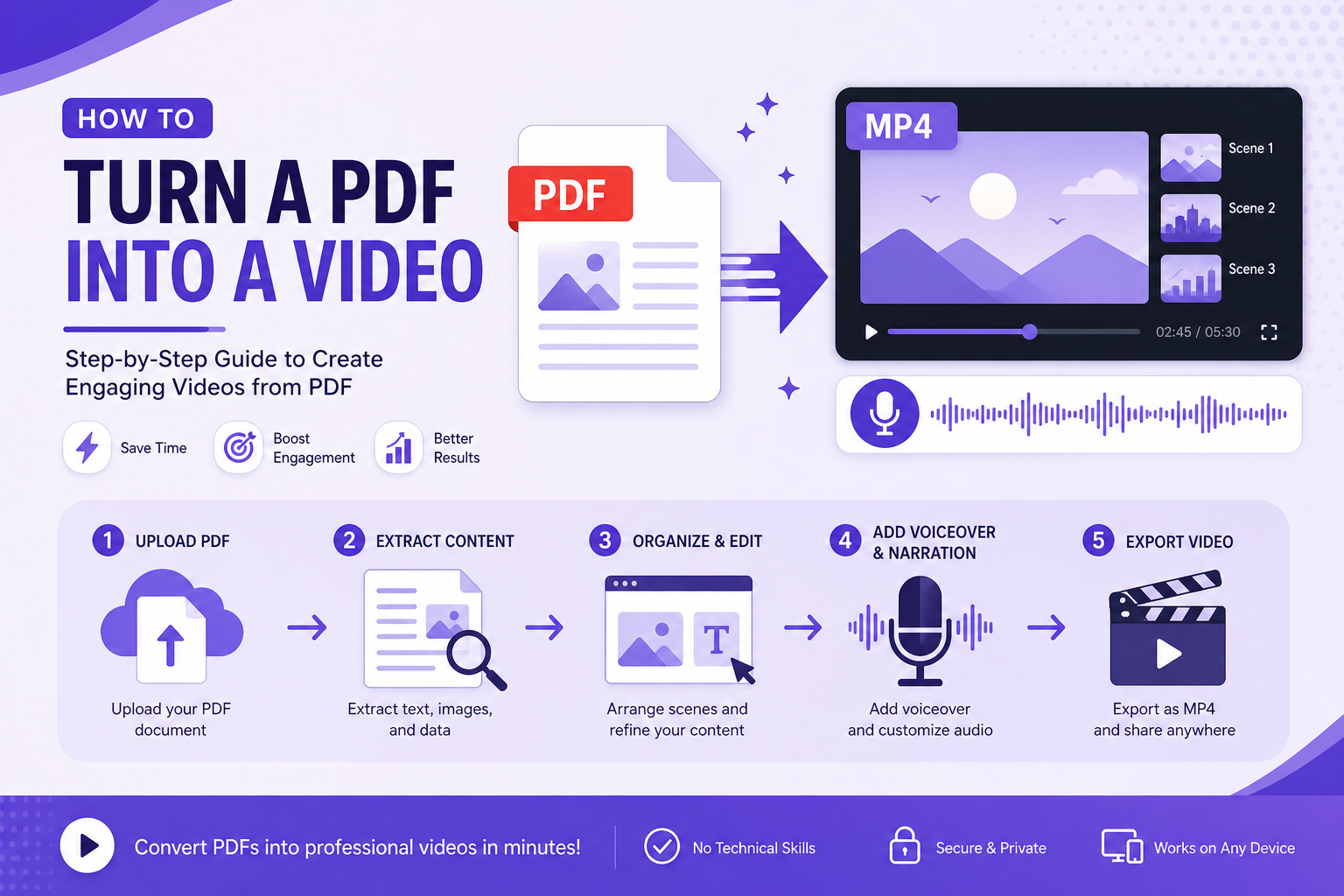
Turning a PDF into a video used to mean hiring a motion designer, recording a screen capture, or spending hours in video editing software. In 2026, AI tools handle the heavy lifting — you upload the PDF, and the tool extracts the content, builds a visual structure, adds narration, and outputs a finished video.
The tricky part is that not all tools do this equally well. Some produce stiff slideshows. Others generate genuinely engaging videos with narration, transitions, and broadcast-style visuals.
Here are the five best tools for converting PDFs to video, with honest notes on what each is actually good for.
Why Converting a PDF to Video Makes Sense
A PDF sits in a downloads folder. A video lives on YouTube, LinkedIn, or your website — and people actually watch it.
The content you've already written in that PDF — the research, the argument, the explainer — is often better than most video scripts. The problem is packaging. Once that PDF becomes a video:
- It's shareable on platforms where PDFs don't reach
- It adds audio narration that a PDF can't deliver
- It's accessible to audiences who consume content by watching rather than reading
- It can be embedded in blogs, newsletters, and landing pages
1. Article Video Studio — Best for High-Quality Branded Videos From PDFs
Best for: Marketers, educators, and creators who want a visually polished output
Article Video Studio is built specifically for turning written content — including PDFs — into professional broadcast and explainer videos. You upload the PDF (or paste a URL if the content is online), select a visual template, and the AI generates a narrated video with structured scenes.
The output quality is noticeably higher than most PDF-to-video tools because Article Video Studio uses purpose-built templates with broadcast-style visuals:
1. Newscast — broadcast graphics, lower thirds, anchor-style narration
2. Nightfall — cinematic dark glass panels, great for launches and deep dives
3. Gridcraft — editorial bento-grid layouts, clean and modern
4. Spotlight — bold kinetic typography, fast-paced and social-first
5. Geometric Explainer — clean whiteboard-style for technical content
You can also export the same PDF content as a PowerPoint deck, PDF slides, or PNG images alongside the video — one source document, four distribution formats.
Pricing: $4 per video; bulk rates at 10+ and 30+ exports Best for: Content that deserves visual polish — marketing materials, educational content, product explainers Try it: articlevideostudio.com
2. Synthesia — Best for Professional Corporate Videos With AI Avatars
Best for: Enterprise training, compliance, and sales enablement content
Synthesia is the professional-grade option. It extracts key points from your PDF, drafts a script, and produces a video with one of 230+ AI presenters delivering the narration with lip-synced delivery in 140+ languages.
The result looks like a real human is presenting your document content on camera. It's the most professional output of any tool on this list — which is also why it's the most expensive.
Best for: Corporate training, compliance modules, customer onboarding, sales presentations Limitation: Cost; overkill for casual or educational use
3. X-Pilot — Best Free PDF to Video Converter
Best for: Users on a tight budget who need a professional output without watermarks
X-Pilot uses AI to extract the document structure and generate narrated, animated videos — not simple slideshows. The free tier covers up to 30 pages, exports at 1080p MP4, no watermark, no credit card required.
For simple instructional content, research summaries, and educational PDFs, X-Pilot's free tier is genuinely useful. The output won't match Article Video Studio or Synthesia visually, but for the price it's hard to beat.
Best for: Free PDF-to-video conversion with no watermark Limitation: Less visual polish than premium tools; templates are more generic
4. Visla — Best for Short-Form and Social Video
Best for: Marketers turning PDFs into short, engaging reels and explainers
Visla automatically extracts key content from the PDF, breaks it into scenes, and generates a video structure that feels closer to a reel or explainer video rather than a static presentation. It adds stock footage, narration, and transitions.
If you need to turn a PDF into a LinkedIn video, Instagram Reel, or YouTube Short, Visla's AI-driven storytelling approach is better suited than tools focused on presentation-style output.
Best for: Short-form and social video from PDF source content Limitation: Less control over branding and visual style than Article Video Studio
5. Powtoon — Best for Animated Explainer Videos
Best for: Educators and trainers who want animated characters and scenes
Powtoon is an AI-powered platform where you upload a PDF, select an output style (animated, presentation-style, or footage-based), and let the AI generate a script, build scenes, and produce a video.
The animated style works particularly well for educational content — think explainer videos for courses, tutorials, and how-to guides.
Best for: Educational and training content with animated visuals Limitation: The animated style isn't appropriate for all content types
How to Make a PDF Into a Video With Article Video Studio (Step by Step)
1. Go to articlevideostudio.com and sign in
2. Click New Project → select PDF upload or paste a link if the content is hosted online
3. Upload your PDF
4. Select a template — Newscast for broadcast style, Gridcraft for editorial, Nightfall for cinematic
5. Choose a voiceover from the voice library
6. Click Generate — the AI extracts content, structures scenes, and builds the video (2–3 minutes)
7. Review scenes in the editor; adjust any scene text or images if needed
8. Export as MP4 video, PDF slides, PowerPoint, or PNG images
The full process from PDF upload to finished video takes under 10 minutes for most documents.
Comparison: PDF to Video Tools
- Article Video Studio — Free: Trial · Avatars: — · Branding Control: ✓✓ · Export Formats: MP4, PPT, PDF, PNG · Best For: Polished explainers & carousels
- Synthesia — Free: No · Avatars: ✓✓ · Branding Control: ✓ · Export Formats: MP4 · Best For: Corporate/enterprise video
- X-Pilot — Free: ✓ · Avatars: — · Branding Control: Limited · Export Formats: MP4 · Best For: Budget PDF-to-video
- Visla — Free: Limited · Avatars: — · Branding Control: ✓ · Export Formats: MP4 · Best For: Short-form social video
- Powtoon — Free: Limited · Avatars: Animated · Branding Control: ✓ · Export Formats: MP4 · Best For: Educational animation
Frequently Asked Questions
Can you really turn a PDF into a video automatically?
Yes. AI tools like Article Video Studio and Synthesia extract content from the PDF, structure it into scenes, add narration, and output a finished video with no manual editing required.
How long does it take to convert a PDF to video?
With Article Video Studio, most PDFs generate into a finished video in 2–5 minutes. More complex documents with many pages may take slightly longer.
What type of PDF works best for video conversion?
Written documents — reports, white papers, how-to guides, explainers, research summaries — work best. Scanned image PDFs (not machine-readable text) may produce lower quality results.
Do I need to edit the video after it's generated?
You can, but it's not required. Article Video Studio gives you a review screen where you can adjust any scene. Most generated videos are usable without additional editing.
Which tool is best for a free PDF to video conversion?
X-Pilot has the strongest free tier with no watermark and 1080p export. Article Video Studio's results are higher quality but require payment.